
See what's inside a zip before you download it
Paste a zip link and LinkUnzip lists every file and folder in it, with sizes, after reading only the zip's index.
Can you preview a zip file before downloading it?
Yes, when the server can send parts of a file, which most download servers can. LinkUnzip downloads only the zip's index, the list of files every zip keeps at its end, and shows every file and folder with its size. For the 18.01 GB COCO train2017 zip, with 118,287 files, that index was 11.9 MB.
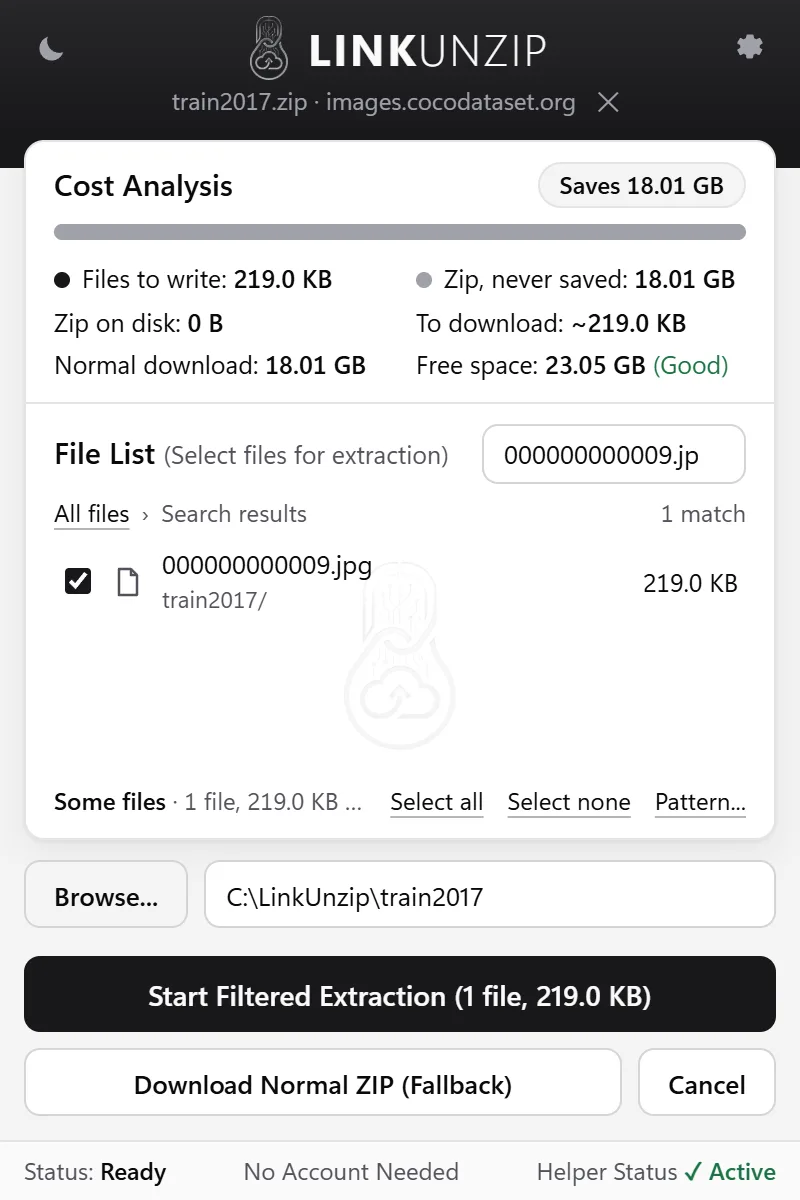
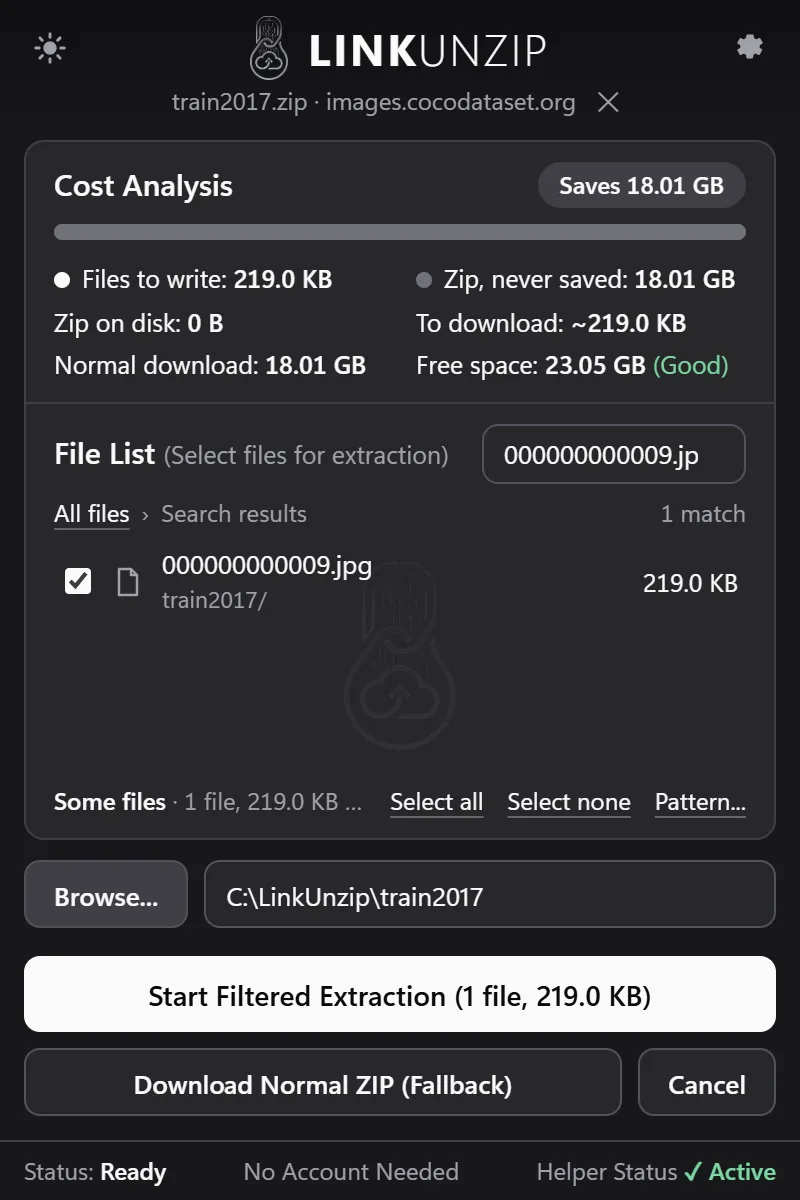
How to preview a zip link
- Right-click the link to the zip and choose Extract with LinkUnzip. Or click the LinkUnzip icon in the toolbar and paste the link; the popup also lists the zip links on the page you are on.
- Read the File List. LinkUnzip fetches the index and shows the folders and files, with sizes and live totals. Click a folder to open it, or type in Filter to search every name in the zip.
- Decide. Nothing but the index has been downloaded so far. Tick what you want and click Start Extraction, hand the link back to your browser with Download Normal ZIP (Fallback), or Cancel.
Once a zip is already on your PC, File Explorer can open it like a folder. The point of a preview is to look before the download, which matters most when the zip is big, the connection is slow or the disk is nearly full.
What the preview shows
- Every file and folder with its size, as the zip's index lists it. Big folders are paged 500 entries at a time, so even the 118,287 files of COCO train2017 fit in the list.
- The Cost Analysis: what LinkUnzip will write, the zip it never saves, what it will download, what a normal download-then-extract would need, and the free space on your drive.
- Live totals that follow what you tick, so the cost changes as you choose.
When a preview isn't possible
- The server can't send parts of a file. LinkUnzip says so and offers Stream it anyway (one pass, every file, zip still not saved) or a normal download. GitHub's Download ZIP button is the common case.
- The link opens a web page, not the file. Sites like Google Drive or Dropbox show a page first: open the link, then right-click the page's own download button and choose Extract with LinkUnzip.
- The download needs your login. LinkUnzip asks once for that site, then uses your browser login there and nowhere else.
Questions
Does it work with every server?
The full experience (the cost preview, choosing files, parallel connections) needs a server that can send parts of a file, known as HTTP Range requests. Most download servers, CDNs and cloud storage can. For the others there is Stream it anyway, which reads the zip once from start to end and still doesn't save it.
Does it work with private links?
Yes, when the site logs you in with cookies, as most do. LinkUnzip asks once per site before it uses your login there, and your cookies go only to that site. Signed links from cloud storage work while they are valid; if one has expired, get a fresh link from the page. How your login is used.
Can I download just one file from a big zip?
Yes. Tick it in the File List and LinkUnzip downloads only that part of the zip, plus the index. One 219 KB photo out of the 18.01 GB COCO train2017 zip took 12.2 MB of download. Take one file out.
Stop saving zips you only unpack once.
Free for Chrome, Edge and Brave on Windows 10 and 11. No account, no ads, no uploads.