
Using LinkUnzip, screen by screen
Right-click a zip link, choose the files, pick a folder, start. Here is what every part of the popup does.
Open a zip link
Right-click any link to a .zip and choose Extract with LinkUnzip. Or click the LinkUnzip icon in the toolbar and paste a link; the popup also lists the zip links on the page you are on, so you can pick one from there.
The Cost Analysis
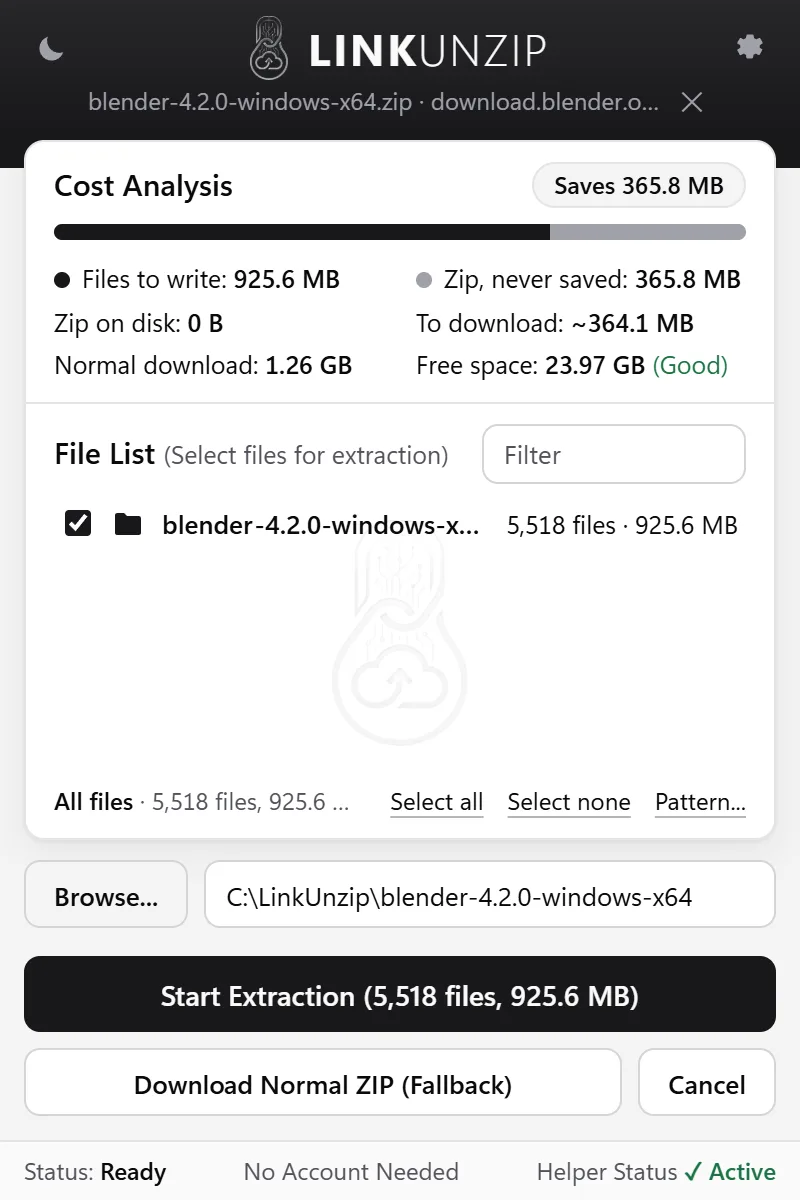
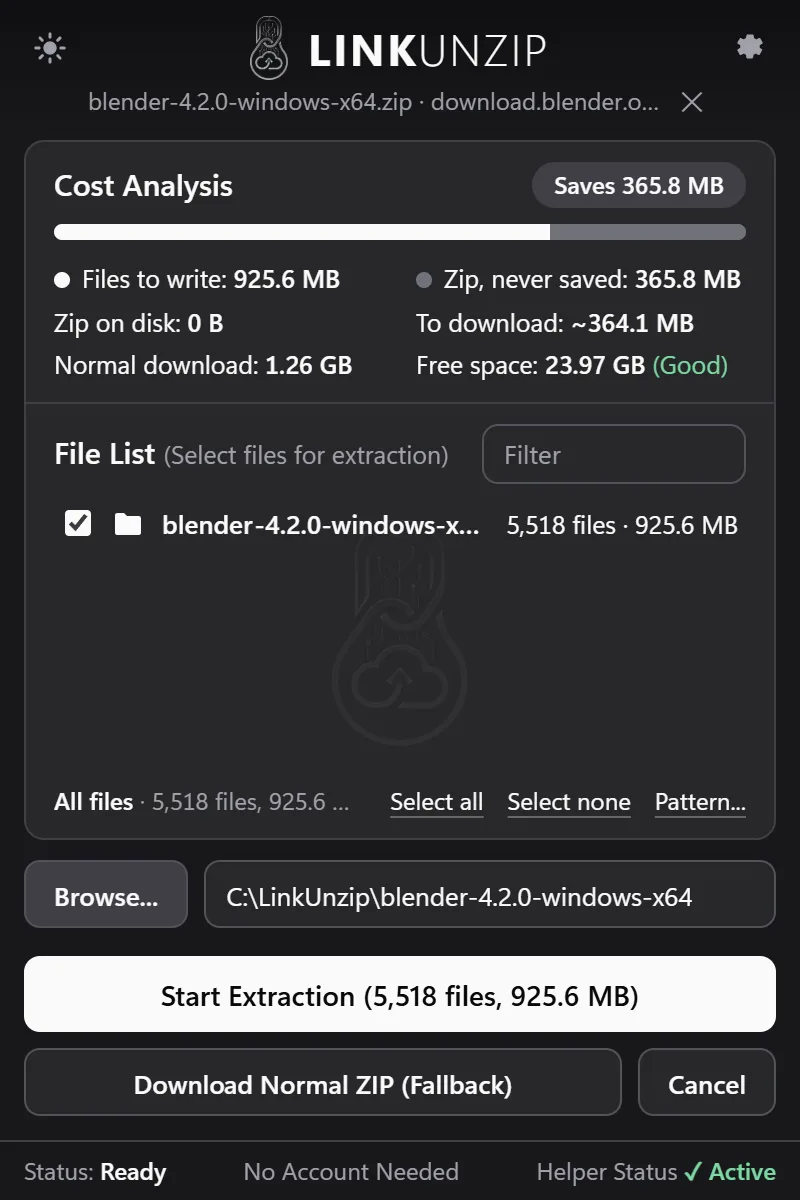
LinkUnzip first reads only the zip's index. The Cost Analysis then shows what it will write, the zip it never saves, what it will download, what a normal download-then-extract would need, and the free space on your drive. It follows the files you tick, so the numbers change as you choose.
The File List and Filter
The File List shows the folders and files in the zip, with checkboxes, sizes and live totals. Click a folder to open it; the path above the list takes you back up. Select all and Select none sit under the list. Filter searches every name in the whole zip, not just the open folder. Files you leave unticked are not downloaded.
Pattern
Pattern... under the File List takes filters such as *.dll, docs/*, separated by commas. It is the quick way to take one kind of file out of a big archive. The button next to it clears the pattern.
Choosing a folder
Browse... opens the Windows folder picker. By default LinkUnzip suggests a folder named after the zip inside your base folder, which you can change in Settings.
Progress and notifications
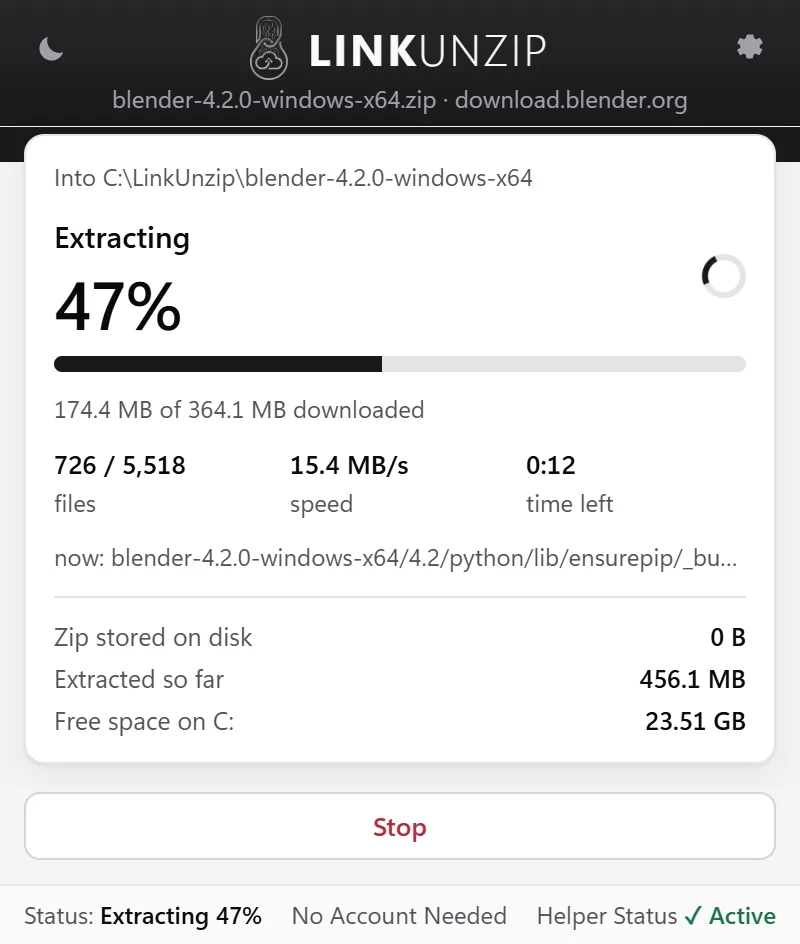
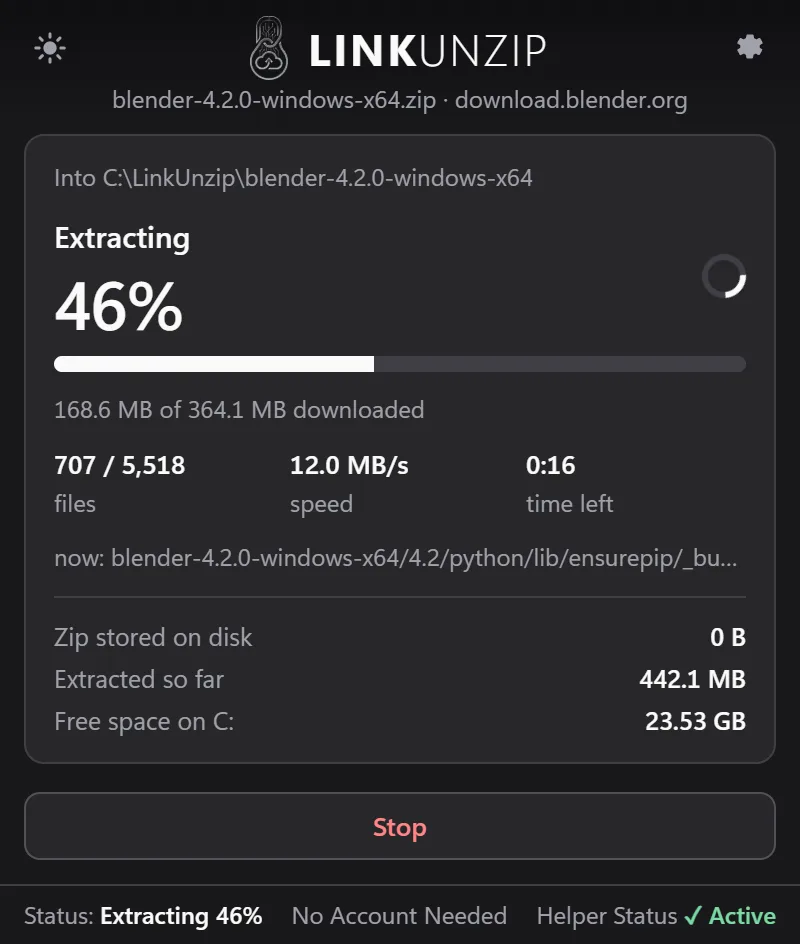
Click Start Extraction. You can close the popup: the toolbar icon shows the progress, and a notification tells you when it is done. Click it, or Open folder, to see your files.
Stop and Resume
Stop keeps the files that are finished. Resume carries on into the same folder and skips every file that is already there and verified; the progress bar picks up from where it stopped. The file that was being written when you stopped starts again. If the network drops, the current file restarts on its own, and finished files are never fetched again.
Stream it anyway
Some servers, like GitHub's Download ZIP, can only send a file from start to end. LinkUnzip tells you, and Stream it anyway reads the zip in one pass with one connection. There is no size preview in this mode and every file is extracted, but the zip is still never saved.
Download Normal ZIP (Fallback)
Changed your mind? Download Normal ZIP (Fallback) hands the link back to your browser, which downloads the zip the usual way.
Private links and your login
Some downloads only work when you are logged in. The first time one needs your login, LinkUnzip says what it will do and asks your browser for permission for that one site. With it, your cookies for that site go to the helper on your PC, and from there only to that site. You can allow every site at once in Settings instead; it is off unless you turn it on.
Catch .zip downloads
With Catch .zip downloads turned on in Settings, LinkUnzip steps in whenever your browser starts downloading a zip: it cancels that download and opens the zip in LinkUnzip instead, so you can choose files and extract straight into a folder. It is off by default and looks at no other downloads.
Settings
Open Settings with the gear icon in the popup:
- Appearance: match Windows, light or dark. The sun and moon button in the header switches too.
- Base folder: where new extractions go by default.
- Parallel connections: 1 to 16, 4 by default.
- Login options: use your login when a site needs it, or on every site.
- Catch .zip downloads: off by default.
When something goes wrong
Errors read as a sentence with a button that helps: a link that opens a web page instead of the file, a login that is needed, an expired link, a file that is gone, a file that isn't a zip, a server error, no connection, a folder that can't be written or a full disk. Copy details copies the versions, the error and the host name (never the full link) for a bug report; it is sent nowhere.
Sites like Google Drive or Dropbox show a page before the file. Open the link, then right-click the page's own download button and choose Extract with LinkUnzip.
Stop saving zips you only unpack once.
Free for Chrome, Edge and Brave on Windows 10 and 11. No account, no ads, no uploads.