
Take one file or folder out of a big zip on a website
Tick the files you need and LinkUnzip downloads only those parts of the zip. The rest of the archive never leaves the server.
The short answer
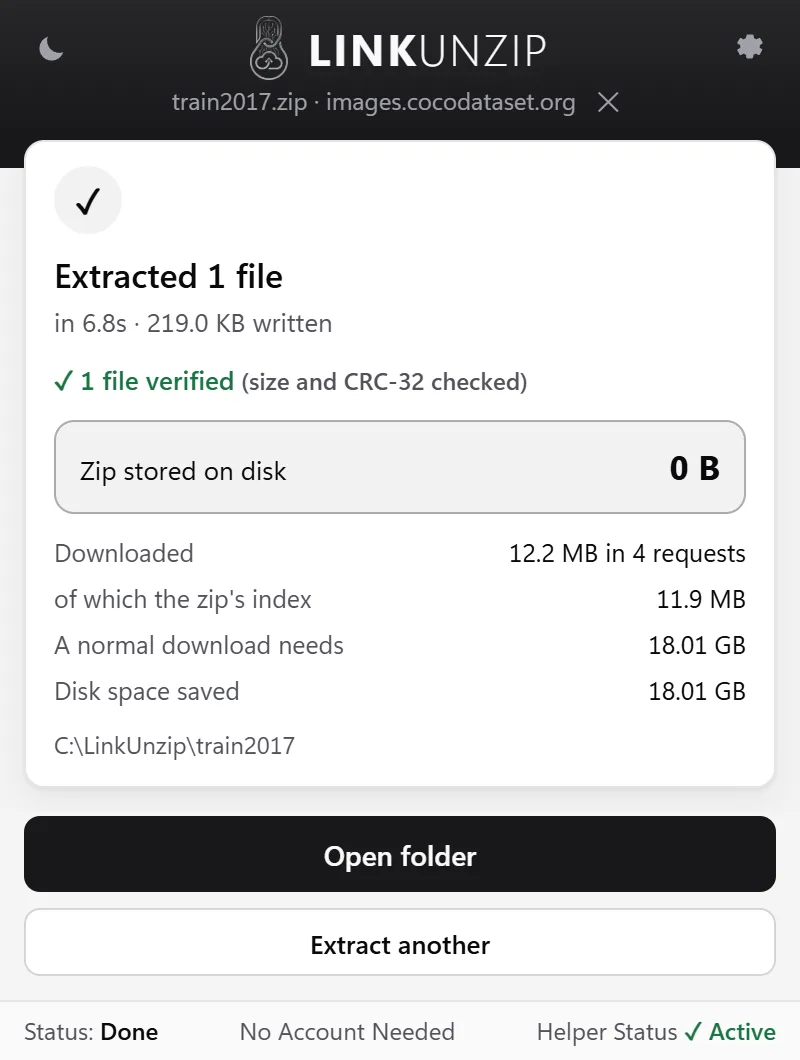
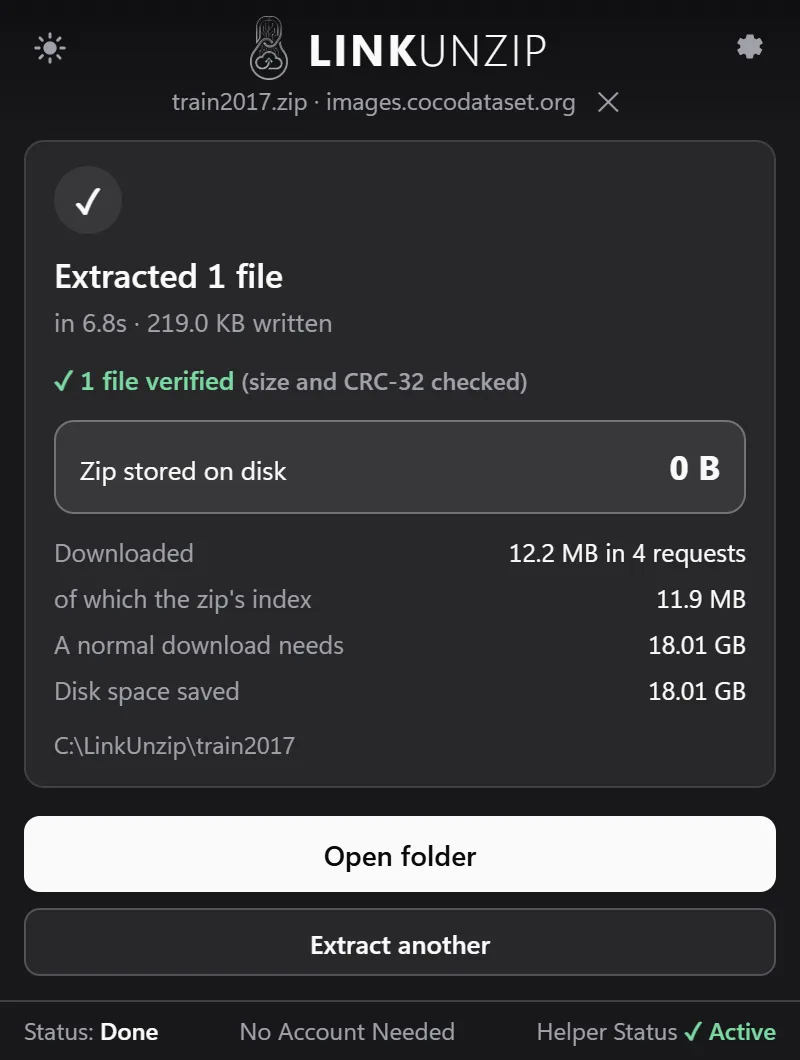
You don't need the whole zip to get one file out of it. LinkUnzip reads the zip's index, you tick the file, and it downloads only that file's data. One 219 KB photo out of the 18.01 GB COCO train2017 zip took 12.2 MB of download: the 11.9 MB index and the photo, in 4 to 7 s.
How to take files out
- Open the link in LinkUnzip: right-click it and choose Extract with LinkUnzip, or paste it in the toolbar popup.
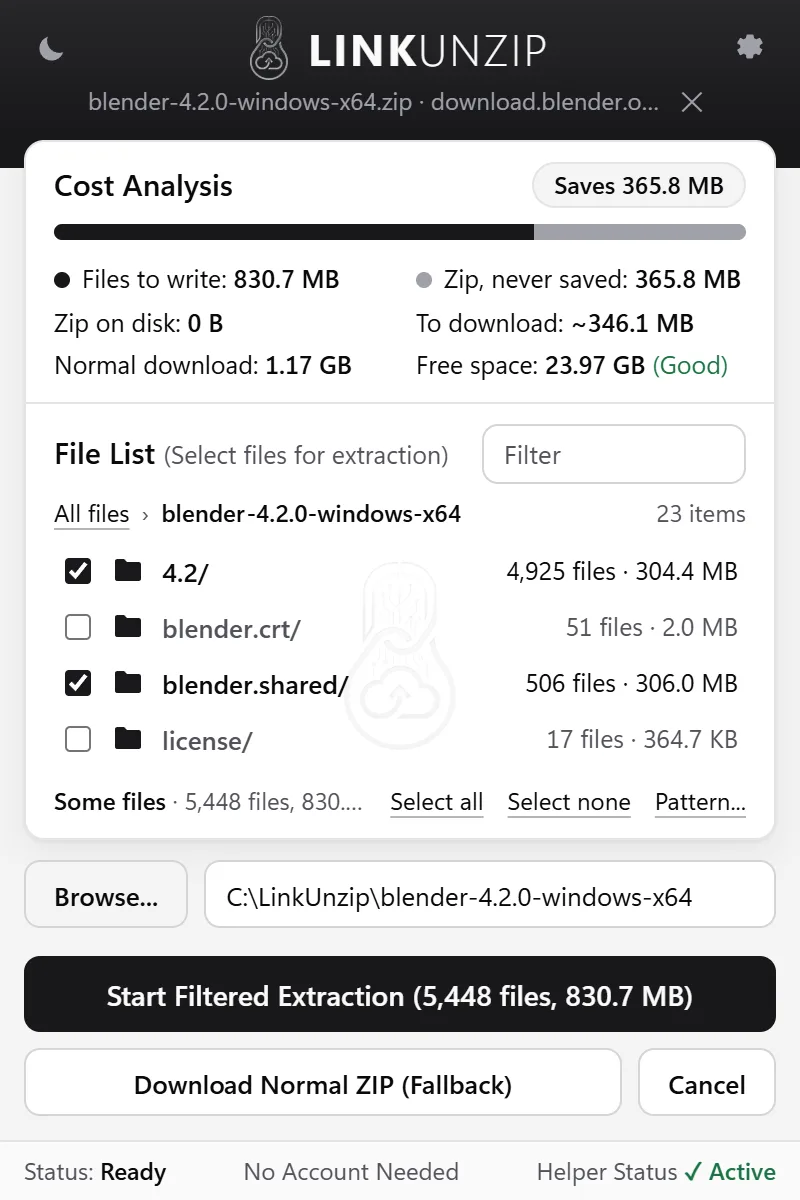
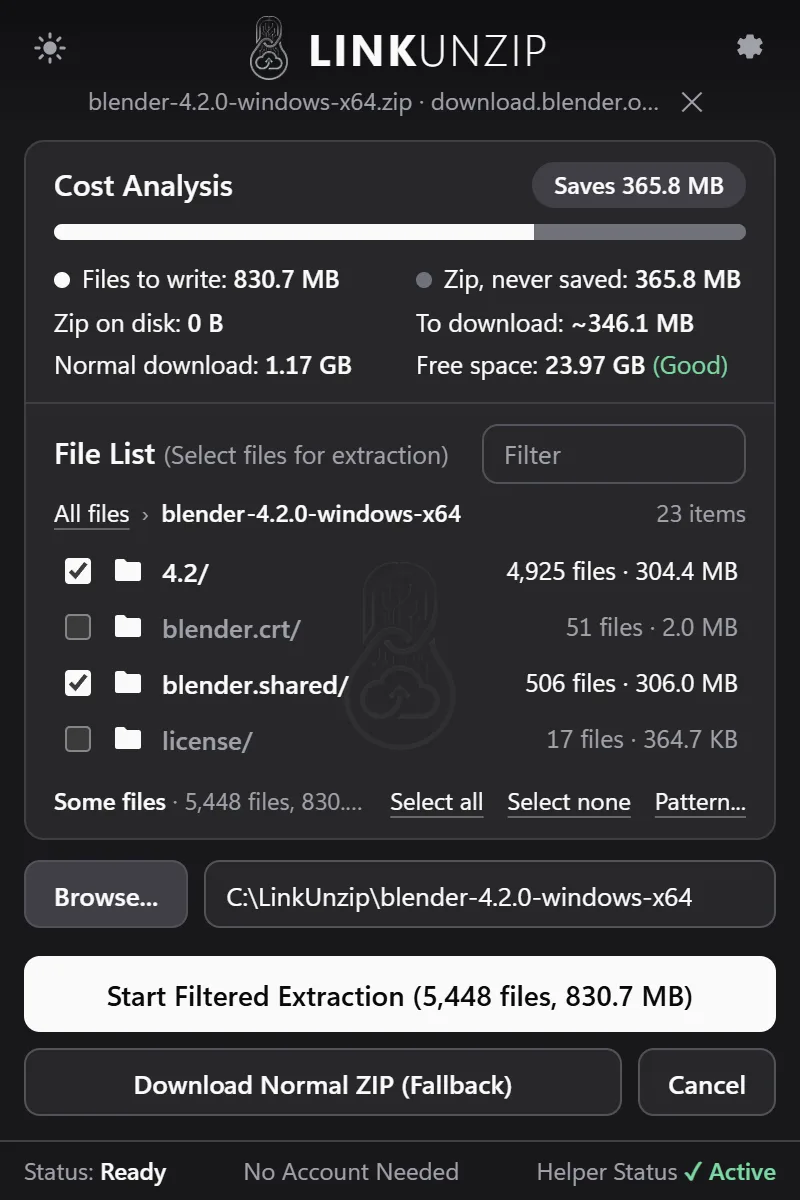
- Choose: untick the top folder, then tick only what you need. Filter finds a name anywhere in the zip. Pattern... takes rules like
*.csvordocs/*, separated by commas. - Pick a folder with Browse..., then click Start Filtered Extraction. The button shows how many files and how much data you chose.
Why skipped files cost almost nothing
The index says exactly where each file's data starts and ends. LinkUnzip groups the files you chose into a few ranges and asks the server for those ranges only. When two chosen files sit close together, the small gap between them (under 1 MB) is read through rather than opening a new request; any bigger gap is skipped. That is why the COCO photo cost 12.2 MB and not 18.01 GB.
Datasets and big downloads
Big public archives are where this helps most: image datasets, game and app builds, sample data, release bundles. If you only need a few files to try something out, take those and skip the rest.
- Public download servers and CDNs usually support it. The COCO dataset server (images.cocodataset.org) and download.blender.org both do.
- Signed links from cloud storage work while they are valid. If one expires, get a fresh link from the page.
- If a site needs your login, LinkUnzip asks before it uses it, and only for that site.
On the command line
The same works in PowerShell or a script with linkunzip.exe, which the installer puts on your PC. --include takes a pattern and can be repeated; files that don't match are not downloaded:
linkunzip extract https://example.com/big.zip -o D:\out --include "*.csv" --jobs 8See the command line page for every option.
Questions
Does it work with every server?
The full experience (the cost preview, choosing files, parallel connections) needs a server that can send parts of a file, known as HTTP Range requests. Most download servers, CDNs and cloud storage can. For the others there is Stream it anyway, which reads the zip once from start to end and still doesn't save it.
Does it work with GitHub?
Yes. Release downloads on GitHub can send parts of a file, so they get the full experience. The green Code, Download ZIP button can't, so LinkUnzip reads that archive in one pass with Stream it anyway, still without saving the zip. A GitHub archive of 1,562 files came out as 35.1 MB from 13.1 MB read.
Is there a size limit?
There is no 2 GB limit: LinkUnzip reads ZIP64 archives and its memory use stays flat. What you need is free space for the files you extract, and the Cost Analysis shows it before anything is written.
What happens if the download stops halfway?
The files that are finished stay. Resume carries on into the same folder and skips them; the file that was being written starts again. In one-pass mode (Stream it anyway), a dropped connection starts the pass again and skips the files already done. Stop and Resume.
Stop saving zips you only unpack once.
Free for Chrome, Edge and Brave on Windows 10 and 11. No account, no ads, no uploads.